# DNS Hosting Platform Using PowerDNS
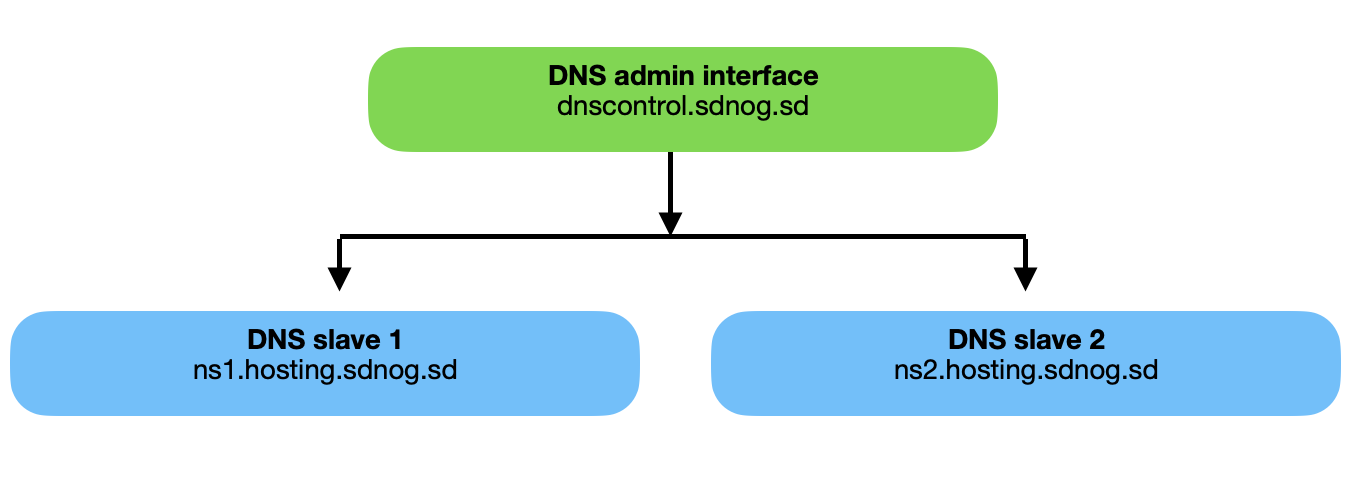
The sdnog DNS-control platform is designed for high availability and reliability of DNS zones. It consists of a hidden master DNS server and two publicly visible secondary DNS servers, all running PowerDNS. This structure ensures secure DNS management and effective load distribution
##### Structure
1. Hidden Master DNS Server
- **Role**: Manages DNS zone files and makes updates. This server is not publicly accessible.
- **Software**: PowerDNS Authoritative Server
- **Responsibilities**: Primary source for DNS data, handles updates, and replicates changes to secondary servers.
- **Access**: Users do not interact with this server directly. Zone management is done through the PowerDNS web GUI [https://dnscontrol.sdnog.sd/login](https://dnscontrol.sdnog.sd/login)
2. Public Secondary DNS Servers
- **Role**: Serve DNS records to the public, providing redundancy and load balancing.
- **Software**: PowerDNS Authoritative Server
- **Responsibilities**: Retrieve and serve DNS data from the master server.
- **DNS Names**: ns1.hosting.sdnog.sd and ns2.hosting.sdnog.sd
##### User Interaction
Users need to contact their Domain provider (eg. for .sd domains contact Sudan Internet Society) to map their domain’s NS records to the sdnog public secondary servers (ns1.hosting.sdnog.sd and ns2.hosting.sdnog.sd ) They will manage their DNS zones using the PowerDNS web GUI provided by the hidden master server. Changes made in the master server are automatically replicated to the secondary servers.
##### Prerequisites
Three servers with PowerDNS installed: one hidden master and two public secondaries. Proper network configuration and access controls. Basic understanding of DNS and PowerDNS configuration.
##### Installation
**1. Install PowerDNS on All Servers**
On each server (master and secondaries), install PowerDNS Authoritative Server. This example uses a Debian-based system:
```
sudo apt update
sudo apt install pdns-server pdns-backend-mysql
```
follow this page to setup DB: [https://www.digitalocean.com/community/tutorials/how-to-install-and-configure-powerdns-with-a-mariadb-backend-on-ubuntu-14-04](https://www.digitalocean.com/community/tutorials/how-to-install-and-configure-powerdns-with-a-mariadb-backend-on-ubuntu-14-04)
**2. Configure the Hidden Master DNS Server**
Edit the PowerDNS Configuration File
Open /etc/powerdns/pdns.conf and configure the following parameters:
```
master=yes
allow-axfr-ips=IP_OF_SECONDARY1,IP_OF_SECONDARY2
webserver=yes
webserver-address=127.0.0.1
webserver-port=8081
```
Replace IP\_OF\_SECONDARY1 and IP\_OF\_SECONDARY2 with the IP addresses of the secondary servers. Ensure the web server is only accessible from internal IPs or localhost.
Set Up the Database
Configure the database connection in /etc/powerdns/pdns.conf. For mysql:
`mysql -u powerdns_user -p USE powerdns;`
Next we will crate a new row in the supermasters table. This row will specify the master server IP address, and the Fully Qualified Domain Name (FQDN) of the slave server we are currently configuring.
`insert into supermasters values ('111.111.111.111', 'ns2.example-dns.com', 'admin');`
Add DNS Zones
Use the PowerDNS web GUI or pdnsutil tool to add and manage DNS zones:
```
pdnsutil create-zone example.com
pdnsutil add-record example.com www A 192.0.2.1
```
Restart PowerDNS
```
sudo systemctl restart pdns
```
**3. Configure the Public Secondary DNS Servers**
Edit the PowerDNS Configuration File
On each secondary server, open /etc/powerdns/pdns.conf and configure:
```
master=no
```
Set Up Zone Transfers
Configure the secondary servers to request zone transfers from the master server:
```
notify-axfr-ips=MASTER_IP
```
Replace MASTER\_IP with the IP address of the hidden master server.
Reload DNS Zones
Use the pdnsutil tool to add the zones as secondary:
```
pdnsutil add-zone example.com ns1.hosting.sdnog.sd
```
Restart PowerDNS
```
sudo systemctl restart pdns
```
**4. Update NS Records**
Contact your Domain provider (eg.the Sudan Internet Society) to map your domain’s NS records to: ns1.hosting.sdnog.sd ns2.hosting.sdnog.sd.
**5. Verify the Configuration**
Test DNS resolution and replication using tools like dig:
```
dig @ns1.hosting.sdnog.sd example.com
dig @ns2.hosting.sdnog.sd example.com
```
Ensure that updates on the master are correctly replicated to the secondary servers.
##### Troubleshooting
- **Check Logs**: Review logs in /var/log/syslog or /var/log/pdns.log for errors.
- **Verify Connectivity**: Ensure all servers communicate properly and that firewalls are correctly configured.
- **Zone Transfer Issues**: Confirm that allow-axfr-ips and notify-axfr-ips are set correctly.